


Introduction
Kubernetes clusters generate an obscene amount of noise. Between application stacks dumping debug output, ingress controllers logging every health check, and internal cluster chatter, your logging bill is probably high enough already. Most of it is low-value noise and we dont really care about it.
Security logs are more important. You cannot afford to guess what happens on your worker nodes when something goes wrong. Tetragon hooks directly into the Linux kernel through eBPF. It bypasses user space entirely. You get events on process executions, network sockets, privilege escalations, and namespace transitions.
There is just one catch. Having those events sitting inside a log file on an isolated node does not help you. Connecting Tetragon to Google Cloud sounds simple on paper, but the official documentation leaves you hanging. Tetragon dumps raw JSON lines to /var/run/cilium/tetragon/tetragon.log, and that is about it.
To ship them without chewing up your cluster resources, you need a lightweight collector. Vector fits the bill. It is fast, written in Rust, and handles JSON transformation with minimal overhead.
The Architecture
Here is the data flow:
- Tetragon runs as a DaemonSet. It intercepts kernel activity and appends JSON lines to
/var/run/cilium/tetragon/tetragon.log - Vector runs on every node as an agent. It tails that file, parses the JSON, enriches the payload with the node name, and tags it with Kubernetes resource labels.
- Google Cloud Logging ingests the structured events under a custom log identifier (
tetragon_events).
Prerequisites
Before jumping into the commands, make sure you have:
- GCP Project: A GCP project for log storage. Replace
alexanderhosewith your project ID. - Kubernetes Cluster: Any Kubernetes cluster works (GKE, minikube, on-premises).
- Helm 3: Install from helm.sh.
- kubectl: Configured to access your cluster.
Step 1: Create a GCP Service Account
Vector needs permission to write logs to your project. We will create a service account and assign it the roles/logging.logWriter role.
Create the Service Account
Go to the GCP Console. Navigate to IAM & Admin → Service Accounts and create a new service account:
- Service account name:
vector-alexanderhose - Service account ID:
vector-alexanderhose - Description:
Service account for Vector to write logs to Cloud Logging
Assign the IAM Role
The service account needs permission to write logs. Grant it the Logs Writer role.
- Role:
roles/logging.logWriter(Logs Writer)
Create and Download the Key
Create a JSON key for authentication. Click on the service account. Go to Keys tab. Click Add Key → Create new key. Select JSON and click Create. This downloads a JSON file.
{
  "type": "service_account",
  "project_id": "alexanderhose",
  "private_key_id": "abc123def456",
  "private_key": "-----BEGIN PRIVATE KEY-----\nMIIEvQIBADANBg...\n-----END PRIVATE KEY-----\n",
  "client_email": "[email protected]",
  "client_id": "012345678901234567890",
  "auth_uri": "https://accounts.google.com/o/oauth2/auth",
  "token_uri": "https://oauth2.googleapis.com/token",
  "auth_provider_x509_cert_url": "https://www.googleapis.com/oauth2/v1/certs",
  "client_x509_cert_url": "https://www.googleapis.com/robot/v1/metadata/x509/vector%40alexanderhose.iam.gserviceaccount.com",
  "universe_domain": "googleapis.com"
}
gcp-credentials.json
Security warning: This key provides write access to your GCP logs. Do not commit it to Git. Do not share it publicly. Store it securely.
Step 2: Store Credentials in Kubernetes
Vector needs to read this key at startup. We store it inside a Kubernetes Secret in the vector namespace:
kubectl create namespace vector
kubectl create secret generic gcp-credentials \
  --from-file=credentials.json=./gcp-credentials.json \
  -n vector
This creates a secret named gcp-credentials. It stores gcp-credentials.json under the key credentials.json.
Verify that the secret was created:
kubectl get secret gcp-credentials -n vector
NAME              TYPE     DATA   AGE
gcp-credentials   Opaque   1      5s
Step 3: Install Tetragon
If Tetragon is already running in your cluster, skip ahead to Step 4.
If you are setting it up fresh, install it with Helm:
helm repo add cilium https://helm.cilium.io/
helm repo update
kubectl create namespace tetragon
helm install tetragon cilium/tetragon -n tetragon
Verify the pods are running on your nodes:
kubectl get pods -n tetragon
NAME             READY   STATUS    RESTARTS   AGE
tetragon-abcd1   1/1     Running   0          30s
tetragon-efgh2   1/1     Running   0          30s
Tetragon now captures security events. It writes them to /var/run/cilium/tetragon/tetragon.log on each node.
Step 4: Configure Vector
Create a custom Helm values file named vector-values-gcp.yaml.
This configuration:
- Mounts the host directory where Tetragon writes its log file.
- Mounts the service account key from our secret.
- Uses Vector Remap Language (VRL) to parse the JSON and attach node metadata.
- Ships events to Cloud Logging using the native k8s_container resource type.
role: "Agent"
service:
  enabled: false

# Mount the Tetragon logs directory and GCP credentials
extraVolumes:
  - name: tetragon-logs
    hostPath:
      path: /var/run/cilium/tetragon
      type: DirectoryOrCreate
  - name: gcp-credentials-volume
    secret:
      secretName: gcp-credentials

extraVolumeMounts:
  - name: tetragon-logs
    mountPath: /var/run/cilium/tetragon
    readOnly: true
  - name: gcp-credentials-volume
    mountPath: /etc/vector/gcp/
    readOnly: true

customConfig:
  data_dir: "/var/run/vector"

  # SOURCE: Read Tetragon logs from the filesystem
  sources:
    tetragon_source:
      type: file
      include:
        - /var/run/cilium/tetragon/tetragon.log

  # TRANSFORM: Parse JSON and add metadata
  transforms:
    tetragon_transform:
      type: remap
      inputs:
        - tetragon_source
      source: |
        # Parse the raw log line as JSON
        . = parse_json!(.message)

        # Add metadata for easier filtering
        for_each(keys!(.)) -> |_index, value| {
          .host = get_env_var!("VECTOR_SELF_NODE_NAME")
          .source = "tetragon"
        }

  # SINK: Send to Google Cloud Logging
  sinks:
    gcp_stackdriver_sink:
      type: "gcp_stackdriver_logs"
      inputs:
        - tetragon_transform
      credentials_path: /etc/vector/gcp/credentials.json
      log_id: "tetragon_events"
      project_id: "alexanderhose"  # REPLACE with your project ID
      resource:
        type: "k8s_container"
        cluster_name: "my-gke-cluster"  # REPLACE with your cluster name
        container_name: "{{`{{ process_exec.process.pod.container.name }}`}}"
        location: "us-central1"  # REPLACE with your cluster location
        namespace_name: "{{`{{ process_exec.process.pod.namespace }}`}}"
        pod_name: "{{`{{ process_exec.process.pod.name }}`}}"
Transform Configuration
transforms:
  tetragon_transform:
    type: remap
    inputs:
      - tetragon_source
    source: |
      . = parse_json!(.message)

      for_each(keys!(.)) -> |_index, value| {
        .host = get_env_var!("VECTOR_SELF_NODE_NAME")
        .source = "tetragon"
      }
- Parse JSON. Tetragon logs are JSON. Vector reads them as text. This parses them into structured data.
- Add metadata. Add the Kubernetes node name and a source field for filtering in Cloud Logging.
Step 5: Deploy Vector
Add the Vector Helm repository and deploy the agent DaemonSet:
helm repo add vector https://helm.vector.dev/
helm repo update
helm upgrade --install vector vector/vector \
  -n vector \
  -f vector-values-gcp.yaml
Check the DaemonSet rollout:
kubectl get pods -n vector
NAME           READY   STATUS    RESTARTS   AGE
vector-abcd1   1/1     Running   0          15s
vector-efgh2   1/1     Running   0          15s
Step 6: Query Events in Google Cloud Logging
Open the Google Cloud Console. Navigate to Logging → Logs Explorer.
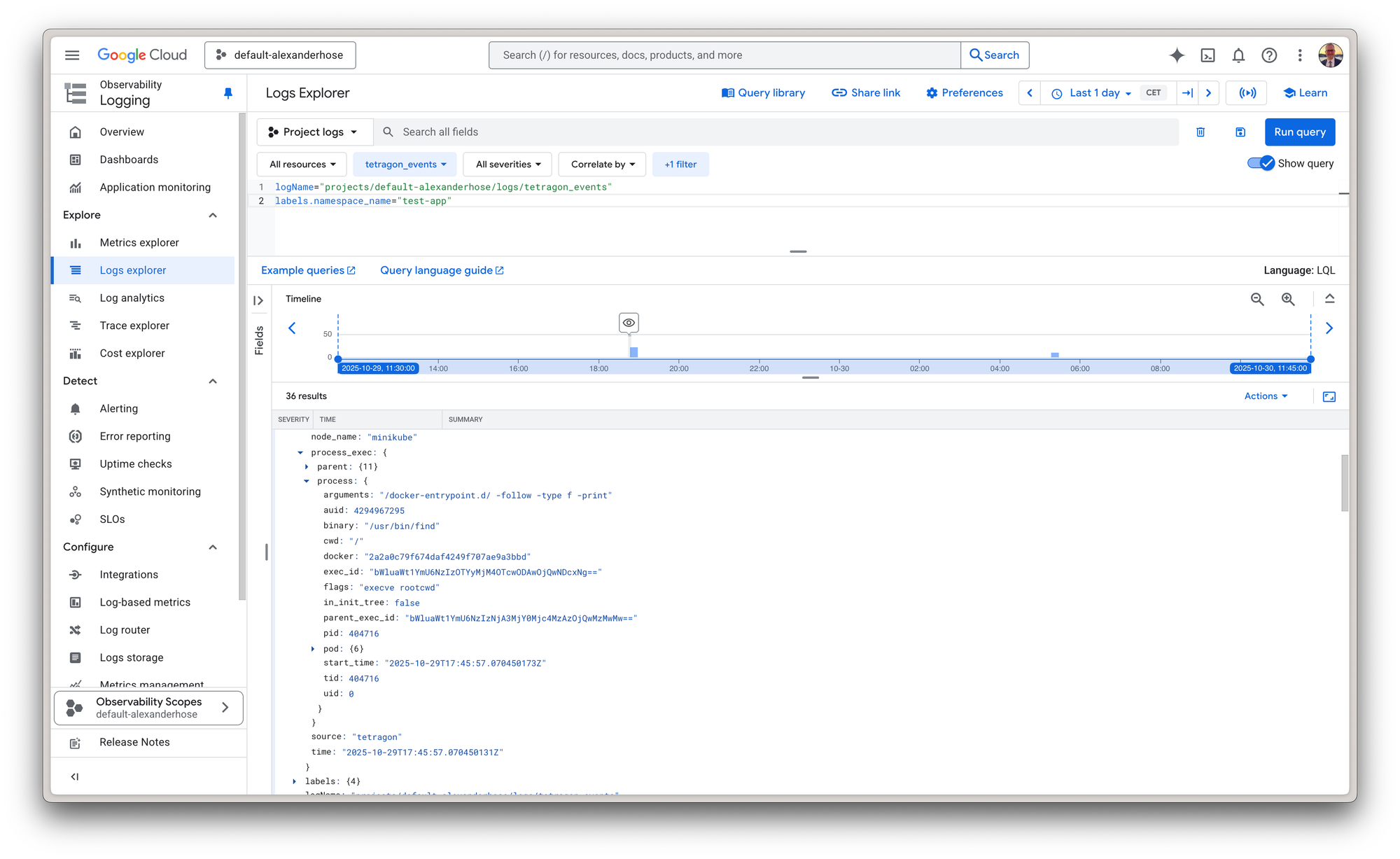
Query 1: Verify the Log Stream
Check if Tetragon events are flowing into your log ID:
logName="projects/alexanderhose/logs/tetragon_events"
Expand any entry. You will see the container metadata cleanly mapped under resource.labels, with full process execution details inside jsonPayload.
- jsonPayload: The Tetragon event data
- resource.type:
k8s_container - resource.labels: Cluster name, namespace, pod name, container name
Query 2: Track Commands in a Specific Namespace
Filter for process execution events inside your production namespace:
logName="projects/default-alexanderhose/logs/tetragon_events"
abels.namespace_name="default"
This filters for:
- Tetragon events log
- Events from
defaultnamespace - Events with
process_execfield (process execution events)
Troubleshooting
Logs Not Appearing in Cloud Logging
Check Vector reads the log file:
kubectl exec -n vector <vector-pod-name> -- ls -la /var/run/cilium/tetragon/
You should see tetragon.log. If missing, the host path mount failed.
Check Vector can access credentials:
kubectl exec -n vector <vector-pod-name> -- cat /etc/vector/gcp/credentials.json
You should see your service account key. If missing, the secret mount failed.
Check Vector logs for errors:
kubectl logs -n vector <vector-pod-name>
Look for authentication errors, permission errors, or network issues.
Permission Denied Errors
The service account lacks the IAM role. Verify it has roles/logging.logWriter:
gcloud projects get-iam-policy default-alexanderhose \
  --flatten="bindings[].members" \
  --filter="bindings.members:serviceAccount:[email protected]"
Add the role if missing:
gcloud projects add-iam-policy-binding default-alexanderhose \
  --member="serviceAccount:[email protected]" \
  --role="roles/logging.logWriter"
Complete Deployment Script
Here is a complete script. Save as deploy-tetragon-gcp.sh:
#!/bin/bash
set -e

# Configuration
PROJECT_ID="default-alexanderhose"  # REPLACE with your project ID
CLUSTER_NAME="my-gke-cluster"       # REPLACE with your cluster name
CLUSTER_LOCATION="us-central1"      # REPLACE with your cluster location

echo "🚀 Deploying Tetragon with Google Cloud Logging integration..."

# Add Helm repositories
echo "📦 Adding Helm repositories..."
helm repo add cilium https://helm.cilium.io/
helm repo add vector https://helm.vector.dev/
helm repo update

# Create namespaces
echo "📁 Creating namespaces..."
kubectl create namespace tetragon --dry-run=client -o yaml | kubectl apply -f -
kubectl create namespace vector --dry-run=client -o yaml | kubectl apply -f -

# Create GCP credentials secret (assumes gcp-credentials.json exists)
echo "🔑 Creating GCP credentials secret..."
kubectl create secret generic gcp-credentials \
  --from-file=credentials.json=./gcp-credentials.json \
  -n vector \
  --dry-run=client -o yaml | kubectl apply -f -

# Install Tetragon
echo "🔍 Installing Tetragon..."
helm upgrade --install tetragon cilium/tetragon -n tetragon

# Create Vector values file
echo "⚙️  Creating Vector configuration..."
cat > /tmp/vector-values-gcp.yaml <<EOF
role: "Agent"
service:
  enabled: false

extraVolumes:
  - name: tetragon-logs
    hostPath:
      path: /var/run/cilium/tetragon
      type: DirectoryOrCreate
  - name: gcp-credentials-volume
    secret:
      secretName: gcp-credentials

extraVolumeMounts:
  - name: tetragon-logs
    mountPath: /var/run/cilium/tetragon
    readOnly: true
  - name: gcp-credentials-volume
    mountPath: /etc/vector/gcp/
    readOnly: true

customConfig:
  data_dir: "/var/run/vector"

  sources:
    tetragon_source:
      type: file
      include:
        - /var/run/cilium/tetragon/tetragon.log

  transforms:
    tetragon_transform:
      type: remap
      inputs:
        - tetragon_source
      source: |
        . = parse_json!(.message)

        for_each(keys!(.)) -> |_index, value| {
          .host = get_env_var!("VECTOR_SELF_NODE_NAME")
          .source = "tetragon"
        }

  sinks:
    gcp_stackdriver_sink:
      type: "gcp_stackdriver_logs"
      inputs:
        - tetragon_transform
      credentials_path: /etc/vector/gcp/credentials.json
      log_id: "tetragon_events"
      project_id: "${PROJECT_ID}"
      resource:
        type: "k8s_container"
        cluster_name: "${CLUSTER_NAME}"
        container_name: "{{{{ process_exec.process.pod.container.name }}}}"
        location: "${CLUSTER_LOCATION}"
        namespace_name: "{{{{ process_exec.process.pod.namespace }}}}"
        pod_name: "{{{{ process_exec.process.pod.name }}}}"
EOF

# Install Vector
echo "📡 Installing Vector..."
helm upgrade --install vector vector/vector \
  -n vector \
  -f /tmp/vector-values-gcp.yaml

echo "✅ Deployment complete!"
echo ""
echo "📊 Check logs in Cloud Logging:"
echo "https://console.cloud.google.com/logs/query;query=logName%3D%22projects%2F${PROJECT_ID}%2Flogs%2Ftetragon_events%22"
Best Practices
Monitor Logging Costs
Tetragon captures raw kernel syscalls. If you run build pipelines, continuous integration runners, or chatty batch jobs, your event volume will explode.
Do not send everything.
1. Tune TracingPolicies: Configure Tetragon TracingPolicies to only observe sensitive events. If you only care about binary executions and socket connections, do not capture broad file access calls.
2. Filter in Vector: Drop noisy health-check loops before they leave the node. You can add a filter block in Vector to drop known benign events, saving network bandwidth and GCP ingestion fees.
Rotate Service Account Keys
Service account keys are long-lived credentials. Rotate them every 90 days. This limits exposure if compromised.
Use Workload Identity on GKE
Workload Identity is more secure than service account keys. Kubernetes pods authenticate to GCP using their Kubernetes service account. No long-lived keys.
This requires additional setup. Service account keys are simpler for getting started. Workload Identity is best for production on GKE but not supported by Vector yet. The option with API keys seem less secure from my point of view.
Export to BigQuery
Cloud Logging retains logs for 30 days by default. For long-term storage, export to BigQuery.
You can run SQL queries over months of data. Build dashboards or train ML models for anomaly detection.
Apply Least Privilege
The roles/logging.logWriter role only writes logs. It cannot read logs or modify resources.
Do not give Vector more permissions. If you expand this setup, create a custom IAM role with exact permissions required.



Member discussion