


If you only use Wiz to browse issues in the console, you probably never think about internal Control IDs. You search by name, filter by severity, and move on with your day.
Then you start wiring up response workflows or automation.
Suppose you are building out auto-remediations in the Wiz Remediation and Response module and need to map a response action to specific Graph Controls. Or maybe you are managing custom frameworks in Terraform, or querying the Wiz GraphQL API. Suddenly, display names do not cut it. Names change. People edit titles. Remediation mappings, APIs, and Terraform definitions need the exact, immutable ID of that Graph Control.
So where do you get it?
The URL Trap
Your first instinct in almost any SaaS platform is to click the control and look at the browser address bar.
In Wiz, that gets annoying fast. Depending on how you opened the control, the URL is either packed with encoded filter state or simply does not hand you a clean, copy-pasteable ID. Nobody wants to waste time decoding URL strings or digging through Chrome DevTools network payloads just to wire up a remediation rule.
There is a built-in shortcut right in the Wiz UI. It is just hidden enough that most practitioners miss it.
The Control + Option Shortcut
Next time you need the exact ID or the raw query structure of a Graph Control, skip the URL bar entirely.
1. Open Wiz and go to Policies -> Graph Controls
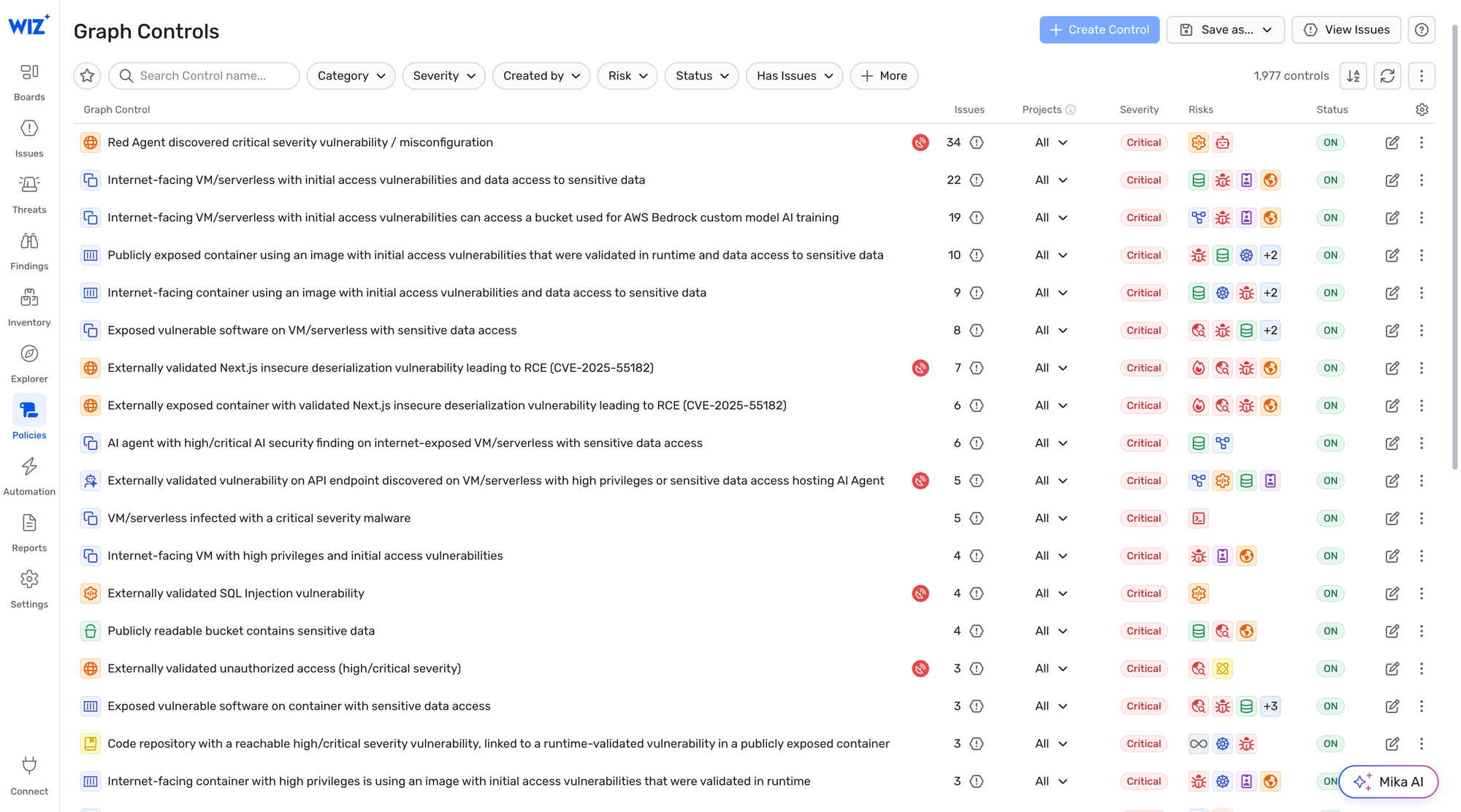
2. On a Mac, press Control + Option on your keyboard.
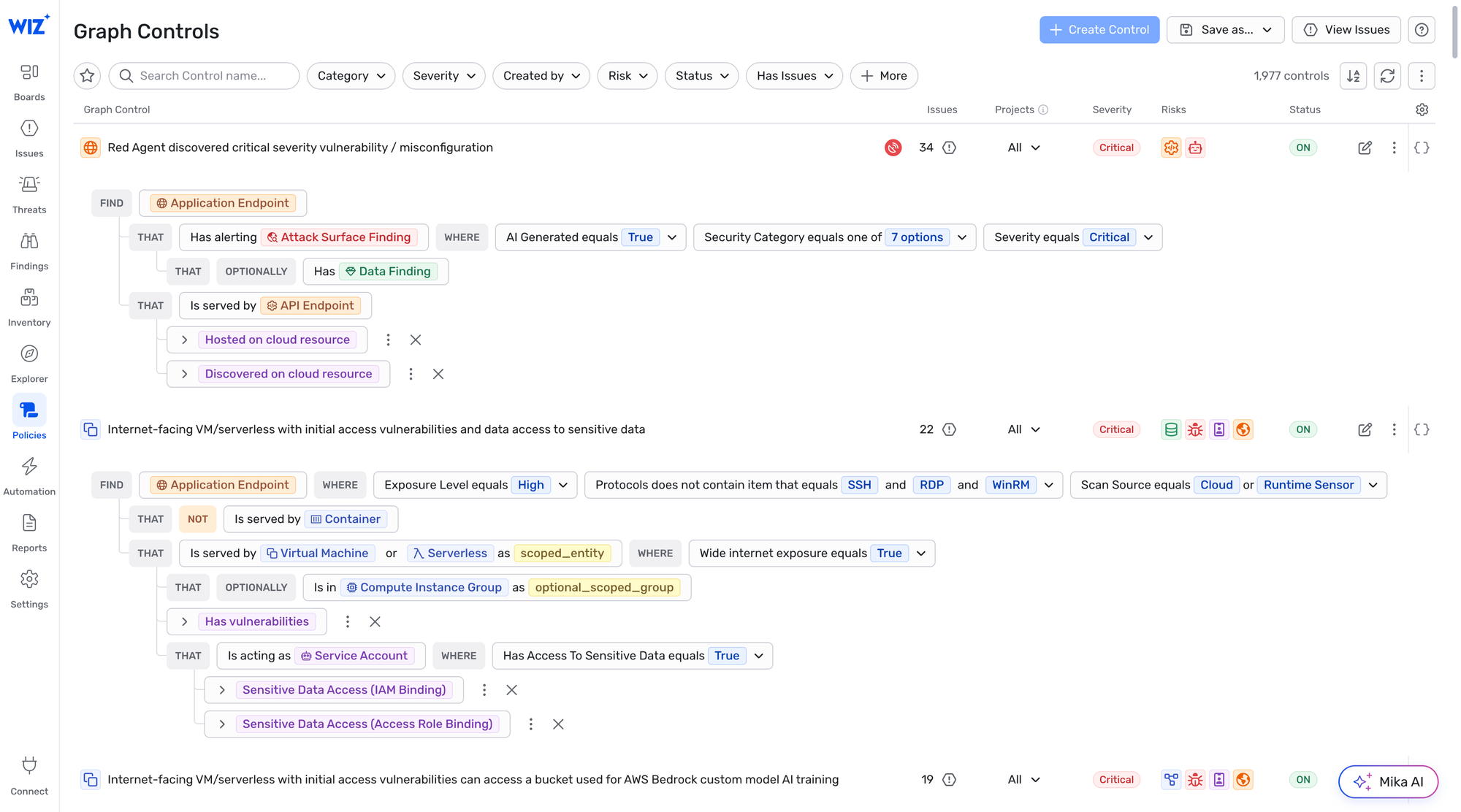
The UI changes immediately. A detailed view appears across the list, exposing the underlying graph queries directly on the page instead of hiding them behind the standard summary view.
Grabbing the Raw JSON
Seeing the queries inline is already helpful when you want to verify what a built-in control actually checks under the hood. Still, the real time-saver sits on the right side of the screen.
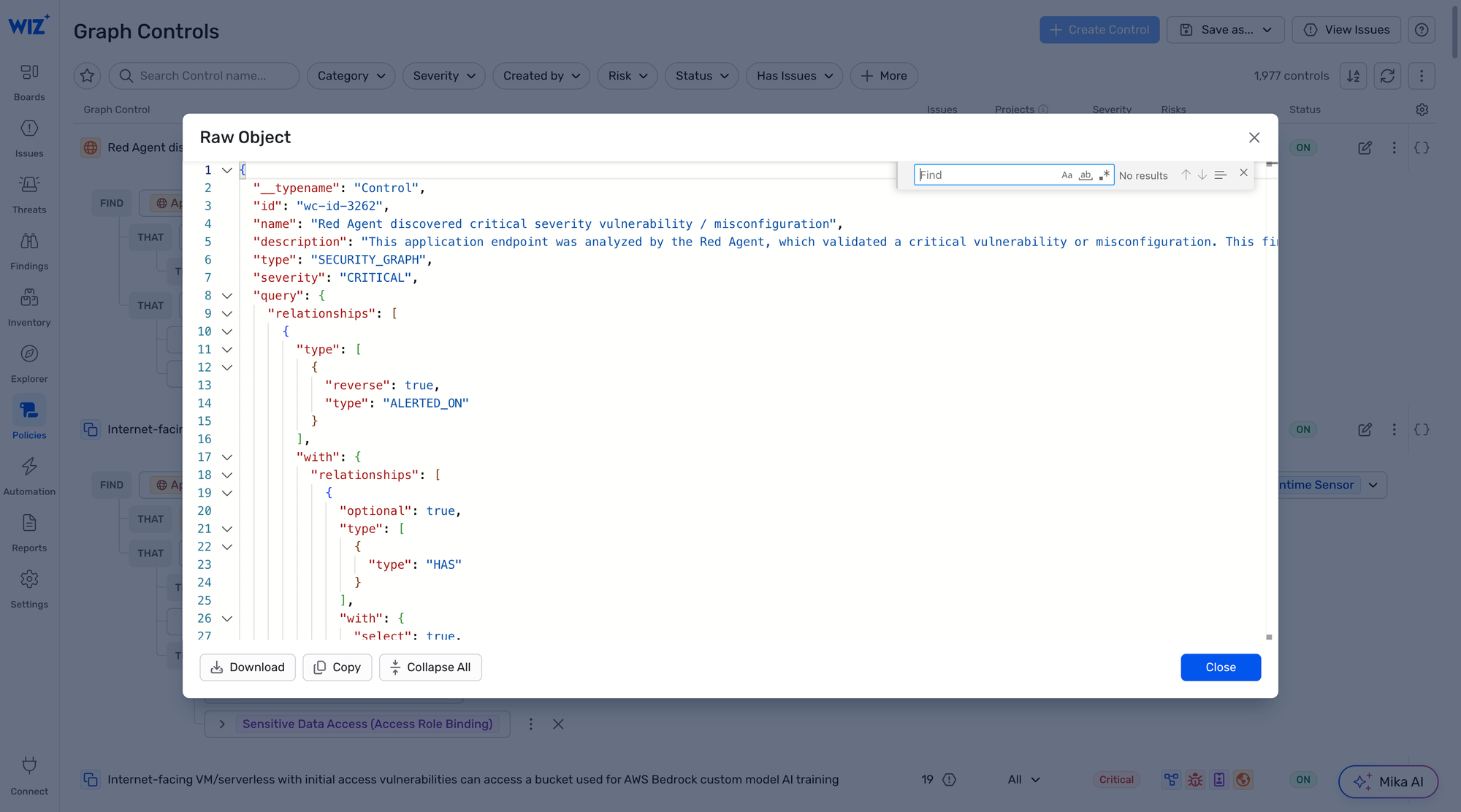
Once you trigger the detailed view with Control + Option, look to the right-hand side of the control. You will see a button for the JSON representation.
Click it. Wiz opens the raw JSON payload for that Graph Control, which gives you:
- id: The exact Control ID ready to paste into your Remediation and Response configuration, GraphQL variables, or Terraform code.
- query: The complete Graph Query represented in raw JSON format.
- Control metadata: Severity, scope, and the additional properties attached to the control object.
Why the JSON View Matters Beyond the ID
Getting the Control ID in two clicks solves the immediate problem when you are linking controls to remediations. Having the raw Graph Query JSON right next to it solves the next one.
Anyone who has built custom Wiz controls in code knows the pain of translating a visual query from the graph builder into valid JSON syntax. One misplaced bracket in a nested where clause breaks the whole definition.
By hitting Control + Option on existing Graph Controls and opening their JSON view, you get both the exact ID for your Remediation and Response workflows and a working JSON query template straight from Wiz.


Member discussion